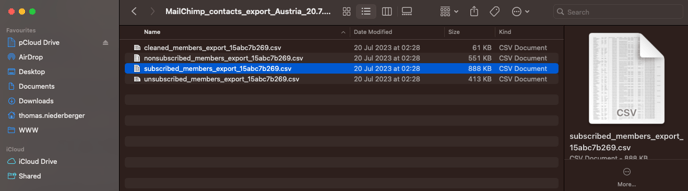
The current Mailchimp subscribers must be exported to use the HubSpot email functionally. Mailchimp offers a simple ZIP export that usually contains four files. We use the "_subscribed" one from the four files and import it to a spreadsheet to check the data and enrich it.
With the help of that step in between, we can make sure the Firstname and Lastname are in Title case, and the unnecessary fields are taken out. Google spreadsheet offers the formula =PROPER(XY) to optimize names.
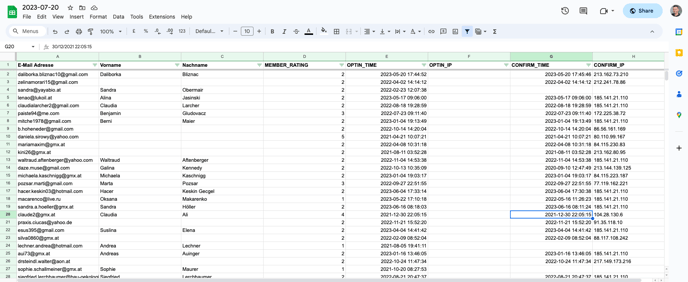
Columns to import:
- Name
- Last name
- Mailchimp Confirm time
- Mailchimp Member rating
- Mailchimp optin time
- Confirm IP
Legal basis when importing:
- Freely given from contact
The official Knowledgeable article gives a good inside of the import functionality. Ensure the import name is YYYY-MM-DD_XX, where XX stands for the country. The import name is visible on the contacts and can NOT be changed anymore. We don't want "Copy24 of Spreadsheet Export from Austria" or something like that. At importing the contacts, create a list as it's recommended with the same name to enrich the data with some necessary properties.
To overview the steps, the easiest is to open a former import and look at the activity. For instance, that contact from the German Subscriber list. The following steps have to be done over the list view ant the contact view. It is not possible to do any Subscription Changes trough the list view.
- Set the Contact Owner
- Set Origin to "mailchimp_xx"
- Set as Marketing Contact
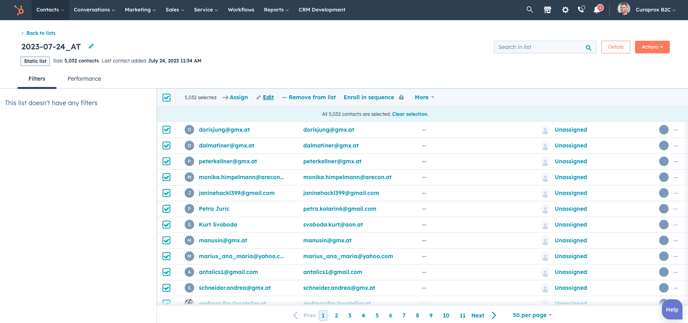
The contact view with the use of the "Advanced filter" let you select all the necessary contacts for the changes.
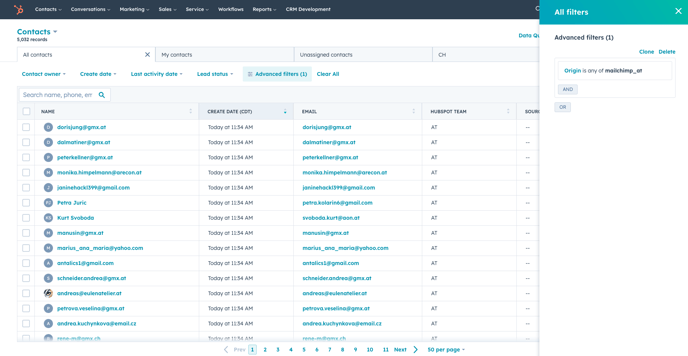
Select all of them and edit the "Subscription status". You also can do one first and check it before you do them all. The change will take some time, can easy be up to a couple of hours until all of them are enrolled. Add a text like: "Data Migration from the Mailchimp Austria List".
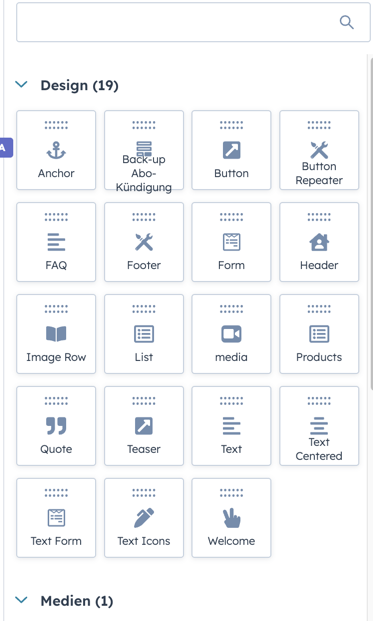
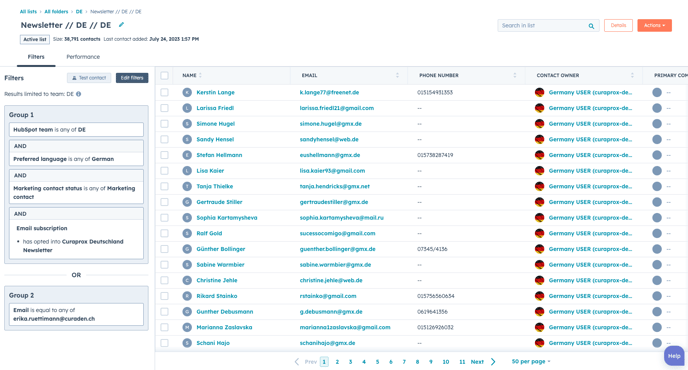
As the next step you have to create the Newsletter recipient list. You also are able to clone an existing list and place it into the country folder. Naming for the list should be as follows: FR // FR // Newsletter ✅