
🚩 NOTE: To use the HubSpot internal Training Platform, you have an active account within the HubSpot B2B Instance. The Log-in works by phone Nr. you must store your Phone Nr. within your HubSpot Account.
Add your Phone Nr. to your HubSpot B2B Account
- Open B2B HubSpot Instance
- Open the settings

- Go to “Your Preferences” > “General”
And add your work Phone Number to the “Phone number”. Make sure, you choose the correct country dial code and hit “save” at the end.
Do not forget to save!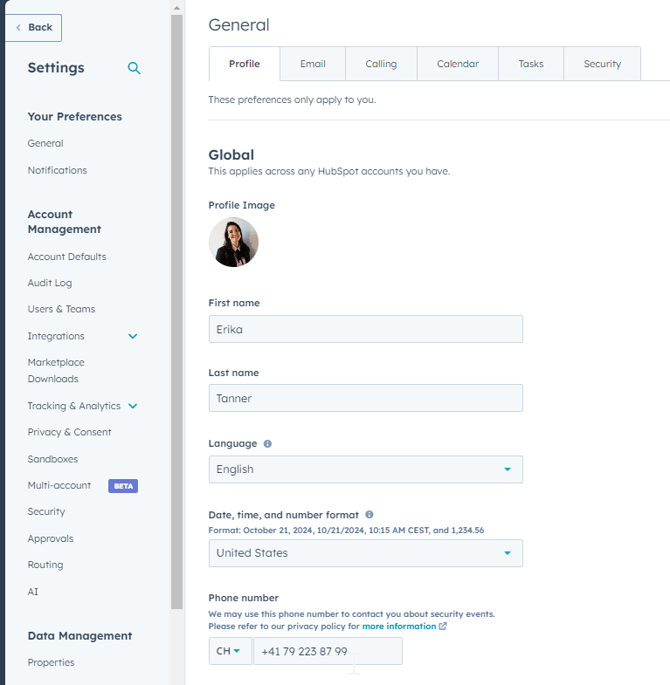
Log-in to the Training Portal
- Open the Training Portal: https://enjoy.curaprox.link/portal/index.php
- Enter the login credentials:
- Email: Use the same email as you are using to log into the B2B HubSpot Account. In most cases it is your curaden email address
- Last 4 digits of your phone number: Add the last numbers of the phone number, which you have added to the personal preferences in your HubSpot B2B Account. Do not add any space in between!
Example: Phone Nr: +41 78 555 22 11 > Last 4 digits: 2211
Hit “Submit”. - Enter the verification code that has been sent to your Outlook address and you will access the Portal
If you experience problems, please contact the HubSpot team
Navigate within the platform
Once you are logged in to your portal, you will see the "Home Screen". Below Instructions will help you to navigate there:
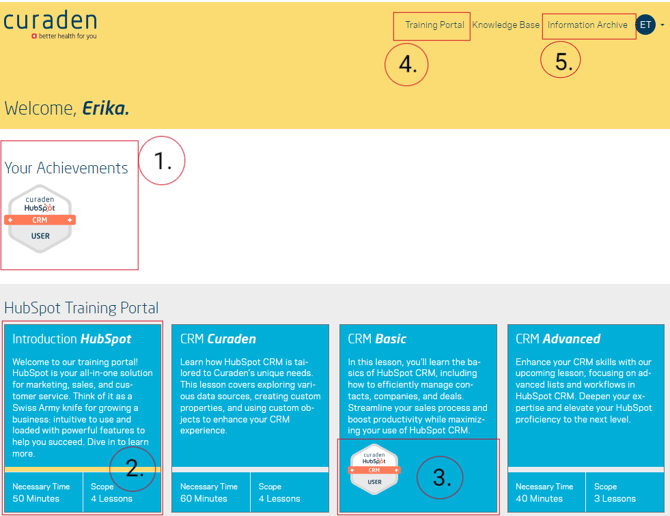
- Once you have finished a module, there will be badges showing "Your Achievements"
- Each blue box within your home screen equals one training course. The courses have been designed to provide you with just the right amount of knowledge needed, to use the full potential of your assigned permission set. For example: Permission set: "CRM AU // Marketing U", means, you should go through the following modules:
- Introduction HubSpot
- CRM Curaden
- CRM Basic
- CRM Advanced
- Marketing Basic
- Once you have finished a particular module it will show a badge instead of information about the lesson (time and amount)
- By navigating to "Training Portal", you will find all available lessons. Please be aware, that the "Home Screen" is not showing all lesson but just an extract.
- Within the "Information Archive", you can find older communications, partner newsletters and documents.
Start and complete a module
To start a module, just click on the blue box and the course opens. It will show you a short introduction, what the lesson is about. Click "Start Lesson", to beginn.
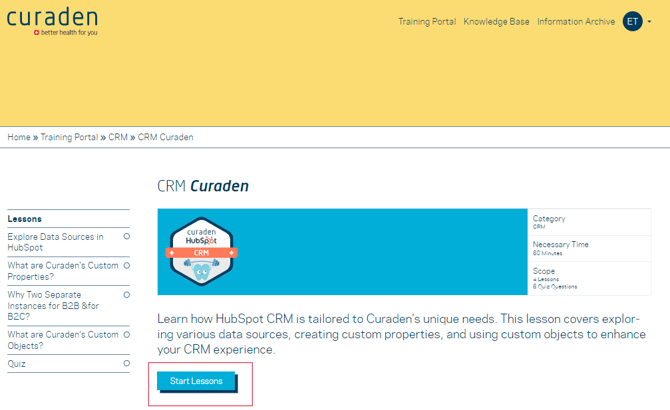
Below Instructions will help you to navigate within the lesson:
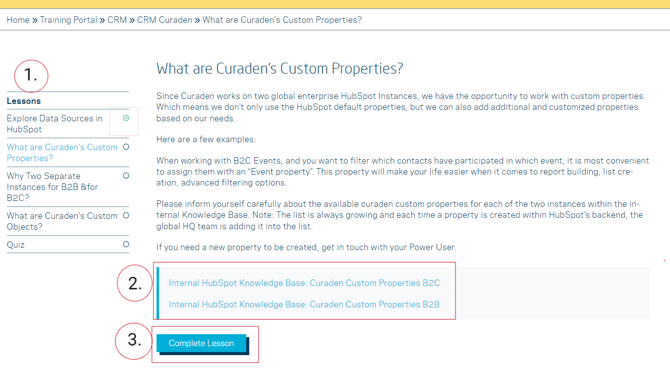
- Every lesson module consists of multiple lessons. You can navigate between the lessons by clicking on the titles. Once you complete a lesson, a green tick will appear in your overview to keep track of your progress.
- A lot of the lesson content exists within the internal HubSpot Knowledge Base which you can access at any time later again. So make sure, you really do read all the links that are marked within the lesson and not just the short intro text.
- By clicking on "complete lesson", the next lesson automatically appears until you went through all the lessons to complete the whole module.